
Vultr Multi-Host
Configure Pritunl Cloud on Vultr with multi-host VPC routing
This documentation has not been updated for v1.2 contact support
This tutorial will create a multi-host Pritunl Cloud server on Vultr bare metal with instance VPC routing using a VXLAN. Nginx will be used to create a public load balancer to the internal Pritunl Cloud instances and FirewallD will be used to manage port forwarding to the internal Pritunl Cloud instances.
Create Vultr Server
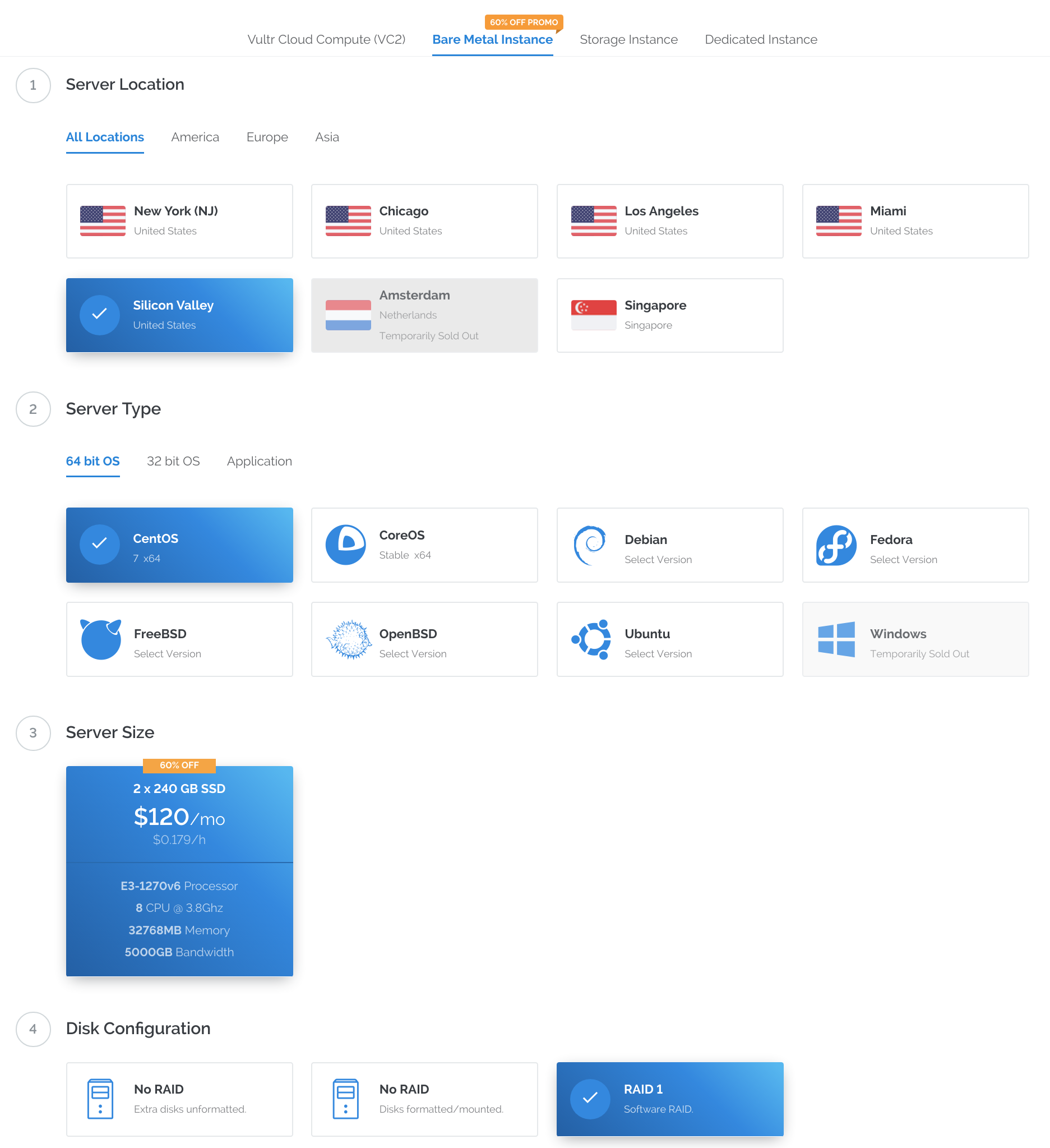
Select Bare Metal Instance and set the Server Type to CentOS 7. Then add an SSH key and click Deploy Now. Repeat this for the number of Pritunl Cloud hosts that will be deployed.
Configure FirewallD
Run the commands below to configure the firewall on all Pritunl Cloud hosts. Replace <PRITUNL_CLOUD_HOST> with the public IP addresses of the Pritunl Cloud hosts. Replace <YOUR_IP> with your public IP. This firewall will configure the NAT needed for the Pritunl Cloud instance host network and the VXLAN traffic between Pritunl Cloud hosts. The VPC VXLAN traffic will travel between hosts unencrypted. This traffic will likely remain on Vultrs internal networks but this should be considered when moving traffic over the VPC networks. The firewall and manual management of the VXLAN host list will prevent unintended access to the VXLAN.
sudo systemctl enable firewalld
sudo systemctl start firewalld
sudo firewall-cmd --permanent --new-zone=cloud
sudo firewall-cmd --permanent --zone=cloud --set-target=ACCEPT
sudo firewall-cmd --permanent --zone=cloud --add-source=<PRITUNL_CLOUD_HOST>/32
sudo firewall-cmd --permanent --zone=cloud --add-source=<PRITUNL_CLOUD_HOST>/32
sudo firewall-cmd --permanent --new-zone=remote
sudo firewall-cmd --permanent --zone=remote --add-source=<YOUR_IP>/32
sudo firewall-cmd --permanent --zone=remote --add-service=ssh
sudo firewall-cmd --permanent --zone=remote --add-service=http
sudo firewall-cmd --permanent --zone=remote --add-service=https
sudo firewall-cmd --permanent --zone=remote --add-port=8443/tcp
sudo firewall-cmd --permanent --zone=public --remove-service=ssh
sudo firewall-cmd --permanent --zone=public --remove-service=dhcpv6-client
sudo firewall-cmd --permanent --zone=public --add-service=http
sudo firewall-cmd --permanent --zone=public --add-service=https
sudo firewall-cmd --permanent --zone=public --add-masquerade
sudo firewall-cmd --reload
sudo firewall-cmd --get-active-zones
sudo firewall-cmd --zone=cloud --list-all
sudo firewall-cmd --zone=remote --list-all
sudo firewall-cmd --zone=public --list-all
Configure Vultr Server
Create a server with CentOS then SSH to the server and run the commands below to configure an SSH key and a non-root user. Replace the SSH key in /home/cloud/.ssh/authorized_keys below with your SSH key.
#!/bin/bash
set -e

sed -i 's/^SELINUX=.*/SELINUX=disabled/g' /etc/selinux/config || true
sed -i 's/^SELINUX=.*/SELINUX=disabled/g' /etc/sysconfig/selinux || true
setenforce 0
sed -i '/^PermitRootLogin/d' /etc/ssh/sshd_config
sed -i '/^PasswordAuthentication/d' /etc/ssh/sshd_config
sed -i '/^TrustedUserCAKeys/d' /etc/ssh/sshd_config
sed -i '/^AuthorizedPrincipalsFile/d' /etc/ssh/sshd_config
tee -a /etc/ssh/sshd_config << EOF

PermitRootLogin no
PasswordAuthentication no
EOF
useradd -G adm,video,wheel,systemd-journal cloud
sed -i '/^%wheel/d' /etc/sudoers
tee -a /etc/sudoers << EOF
%wheel ALL=(ALL) NOPASSWD:ALL
EOF

mkdir /home/cloud/.ssh
chown cloud:cloud /home/cloud/.ssh
chmod 700 /home/cloud/.ssh
tee -a /home/cloud/.ssh/authorized_keys << EOF
ssh-rsa AAAAB3NzaC1yc2EAAAADAQABAAABAQC/x14X6jWFr/ZDkpt8AsomumKmekGm2Jbk/eP6g/pdAnvEGD1zB2+llmmcSYaZdtle4o0/QSURYYNA2wEXClxXWymrNAic/HNkSC069gKF8C52NK+STRuK4VYQNHAH8MG6dLvFO2dhUDke7DGcO8nWr8tGSribLJX1qqhmBocBtHC38bSYklD40sOqy2YDChI08kEv9PhOVcQAdkG8qoxqG3AoapeUQKc2Rvqqvd9NxsGAJygsT5SHPQDR69e0Me9AhaclRVhRRjrCwkad8/rc3ZG/Q22m72i9HT2GJTsMG0ZC3Le00H2PB1KRlqJlFli1fu8+ycSilYP8Rvkqvk0b cloud
EOF
chown cloud:cloud /home/cloud/.ssh/authorized_keys
chmod 600 /home/cloud/.ssh/authorized_keys

systemctl enable sshd
systemctl restart sshd

yum -y install yum-utils
yum -y install epel-release
yum-config-manager --enable epel
yum-config-manager --enable extras
yum -y update

yum -y install ntp bridge-utils
systemctl start ntpd
systemctl enable ntpd
Install Docker MongoDB (Optional)
This tutorial will run MongoDB in a Docker container with host networking. This will provide isolation and limit the memory usage of the MongoDB server. Running Docker with the default bridged networking will break the Pritunl Cloud networking. To avoid this set the Docker bridge option to none and use host networking as shown below. The commands below will install Docker and start a MongoDB service with a 1024m memory limit. The MongoDB database data will be stored in the /cloud directory where all the other Pritunl Cloud data will be stored. This Docker configuration will only work with containers using --network host. This MongoDB server will run on the public IP address of the server, before starting configure the firewall as shown above. Alternatively small virtual servers on Vultr can be used to run the MongoDB database.
sudo yum install -y yum-utils device-mapper-persistent-data lvm2
sudo yum-config-manager --add-repo https://download.docker.com/linux/centos/docker-ce.repo
sudo yum install -y docker-ce

sudo mkdir -p /etc/docker
sudo tee /etc/docker/daemon.json << EOF
{
    "bridge": "none",
    "iptables": false
}
EOF

sudo systemctl start docker.service
sudo systemctl enable docker.service

sudo mkdir -p /cloud/mongo

sudo docker run -d --restart=unless-stopped --name mongo --network host --cpus 1 --memory 1024m --volume /cloud/mongo:/data/db mongo
Install Pritunl Cloud
Run the commands below to install and start Pritunl Cloud. Replace <MONGODB_SERVER_IP> with the IP address of the MongoDB server.
sudo tee /etc/yum.repos.d/pritunl-kvm.repo << EOF
[pritunl-kvm]
name=Pritunl KVM Repository
baseurl=https://repo.pritunl.com/kvm/
gpgcheck=1
enabled=1
EOF

gpg --keyserver hkp://keyserver.ubuntu.com --recv-keys 1BB6FBB8D641BD9C6C0398D74D55437EC0508F5F
gpg --armor --export 1BB6FBB8D641BD9C6C0398D74D55437EC0508F5F > key.tmp; sudo rpm --import key.tmp; rm -f key.tmp

sudo tee /etc/yum.repos.d/pritunl.repo << EOF
[pritunl]
name=Pritunl Repository
baseurl=https://repo.pritunl.com/stable/yum/oraclelinux/8/
gpgcheck=1
enabled=1
EOF

gpg --keyserver hkp://keyserver.ubuntu.com --recv-keys 7568D9BB55FF9E5287D586017AE645C0CF8E292A
gpg --armor --export 7568D9BB55FF9E5287D586017AE645C0CF8E292A > key.tmp; sudo rpm --import key.tmp; rm -f key.tmp
sudo yum -y install pritunl-cloud

sudo pritunl-cloud mongo "mongodb://<MONGODB_SERVER_IP>:27017/pritunl-cloud"
sudo systemctl start pritunl-cloud
sudo systemctl enable pritunl-cloud
Configure Pritunl Cloud
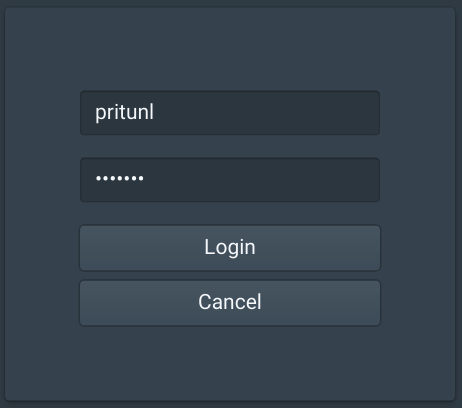
Open the IP address of the server in a web browser and login with the default username and password pritunl
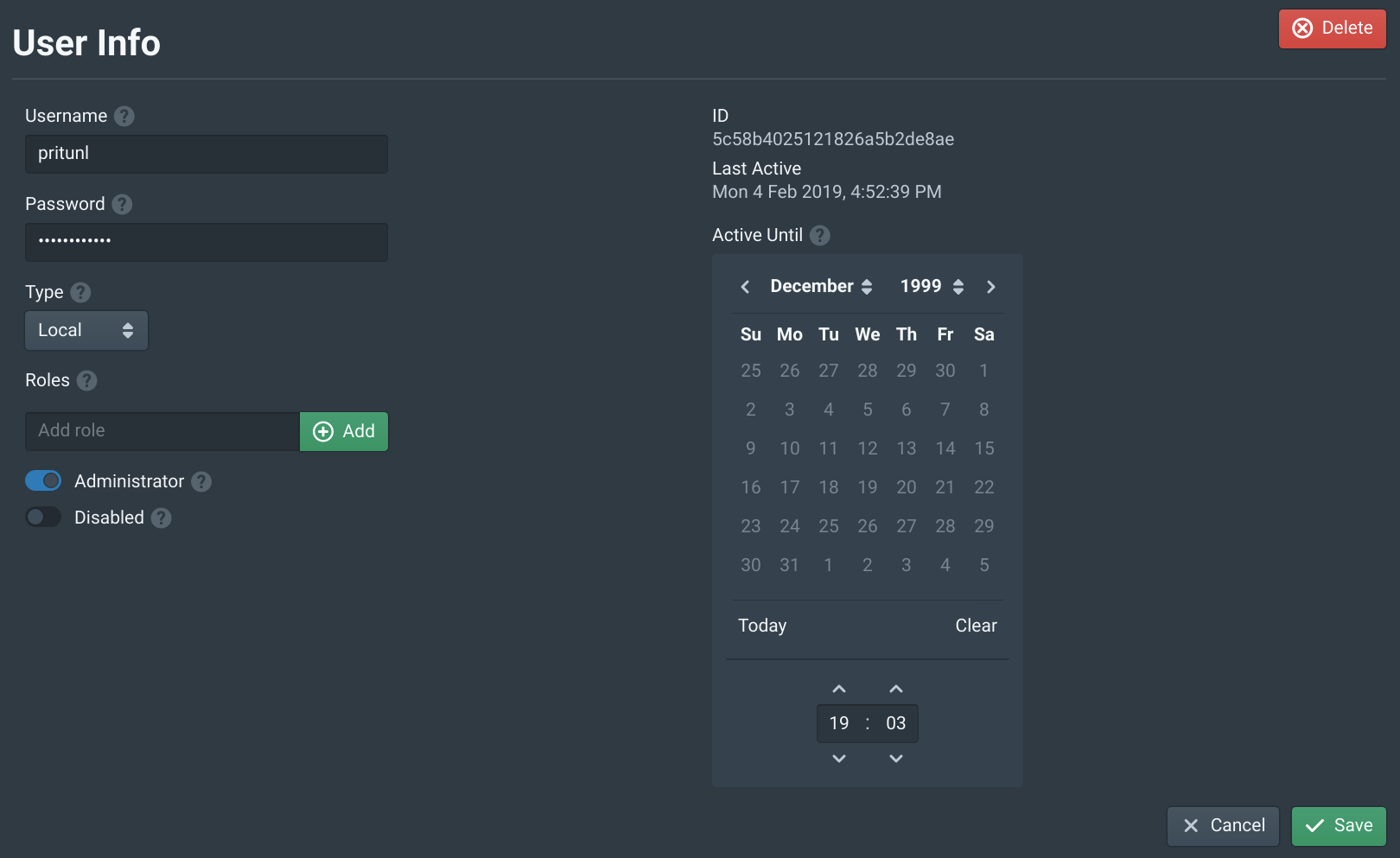
In the Users tab open the pritunl user and set a password. Then click Save.
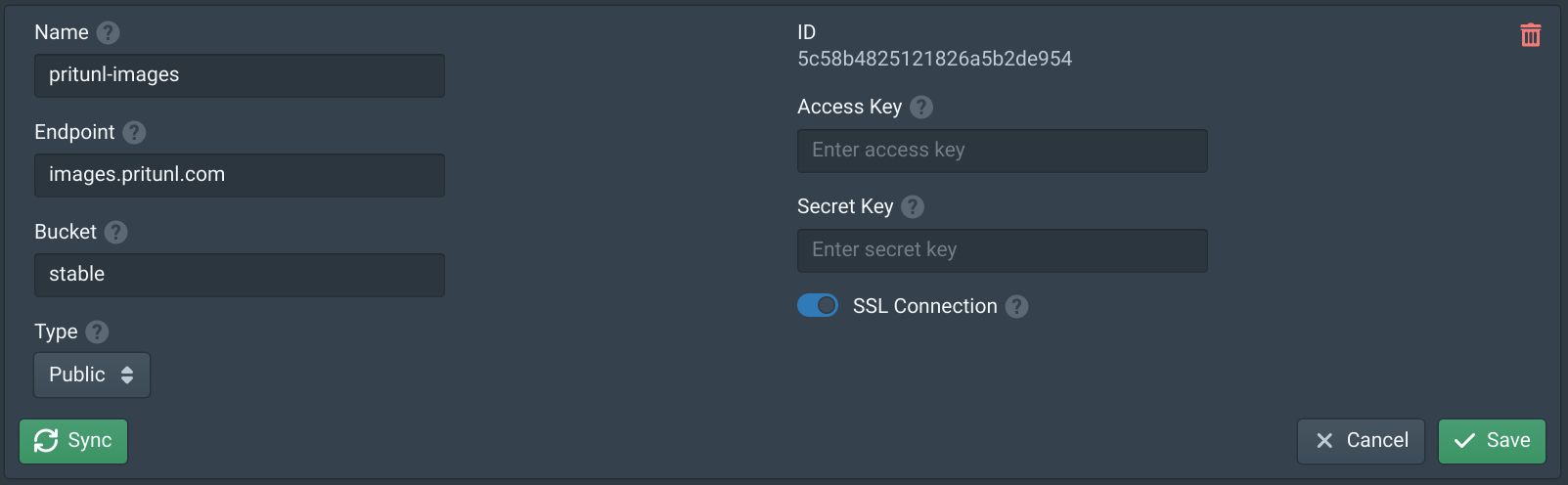
In the Storages tab click New. Set the Name to pritunl-images, the Endpoint to images.pritunl.com and the Bucket to stable. Then click Save. This will add the official Pritunl images store.
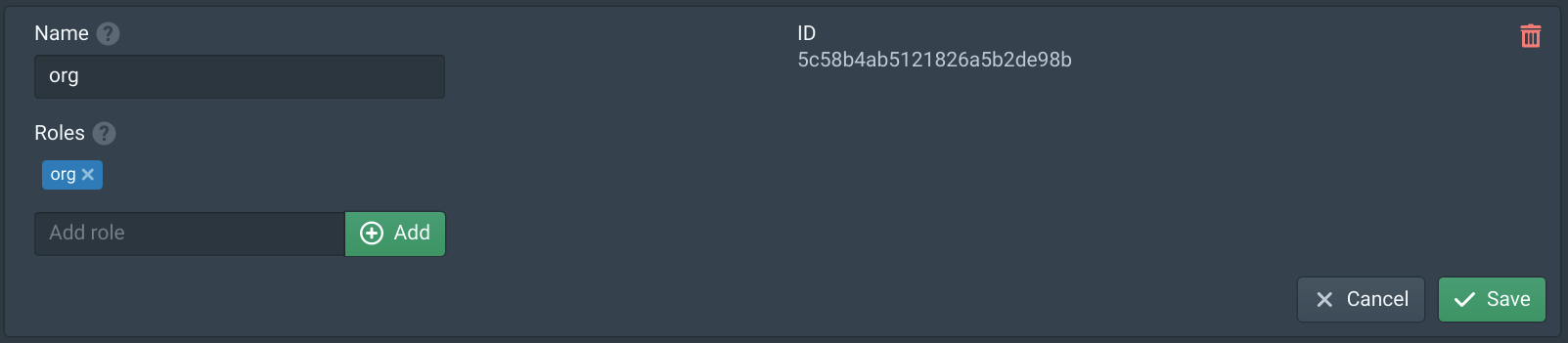
In the Organizations tab click New. Name the organization org, add org to Roles and click Save.
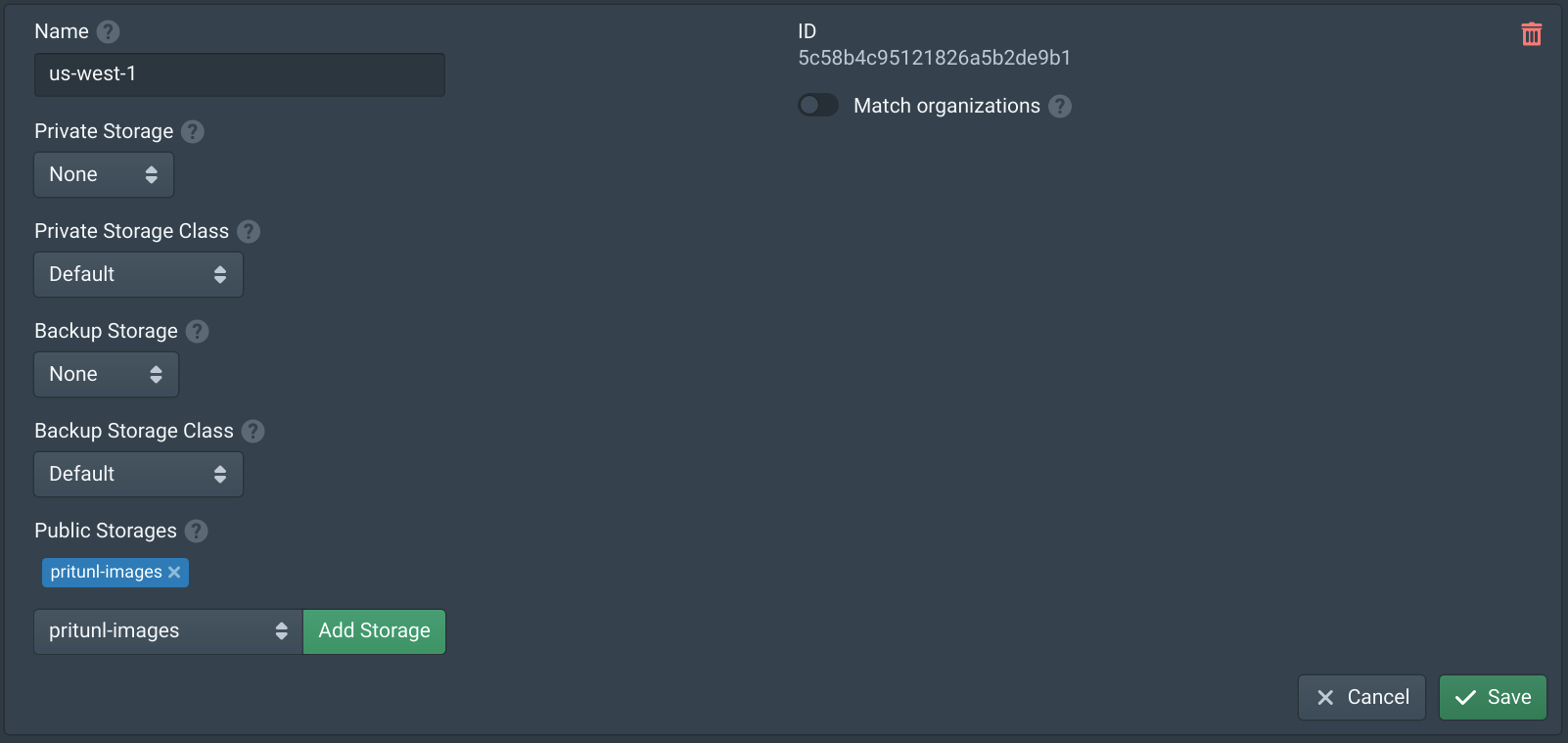
In the Datacenters tab click new and name the datacenter us-west-1 then add pritunl-images to Public Storages.
In the Zones tab click New and set the Name to us-west-1a. Then set Network Mode to VXLAN and click Save.

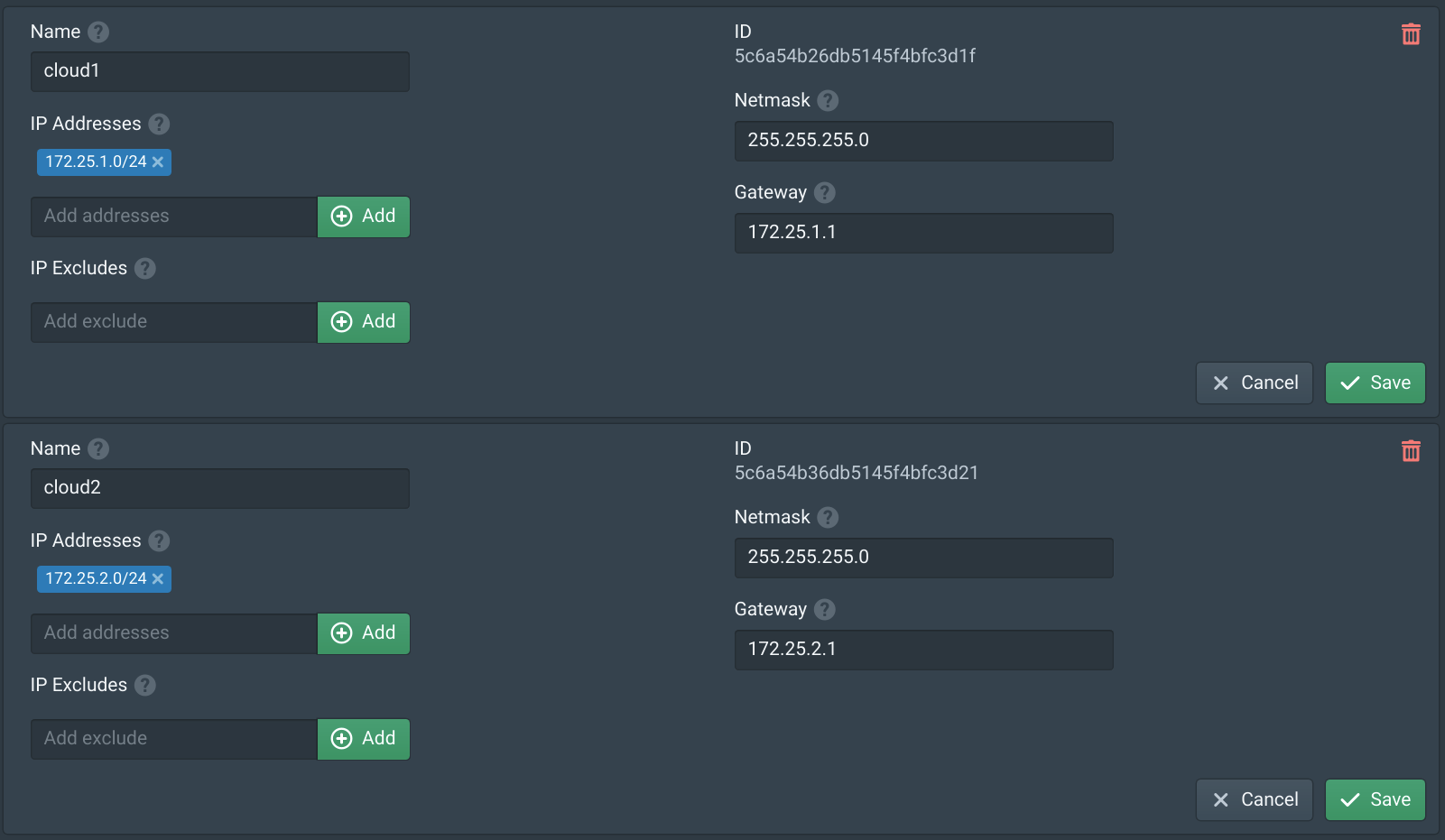
In the IP Blocks tab click New and create an IP Block for each Pritunl Cloud server. Below is an example of three server blocks. These IP blocks will be used to create a host network on each Pritunl Cloud server for Pritunl Cloud instances.
-
IP Block 1
-
Name:
cloud1 -
IP Addresses:
172.25.1.0/24 -
Netmask:
255.255.255.0 -
Gateway:
172.25.1.1 -
IP Block 2
-
Name:
cloud2 -
IP Addresses:
172.25.2.0/24 -
Netmask:
255.255.255.0 -
Gateway:
172.25.2.1
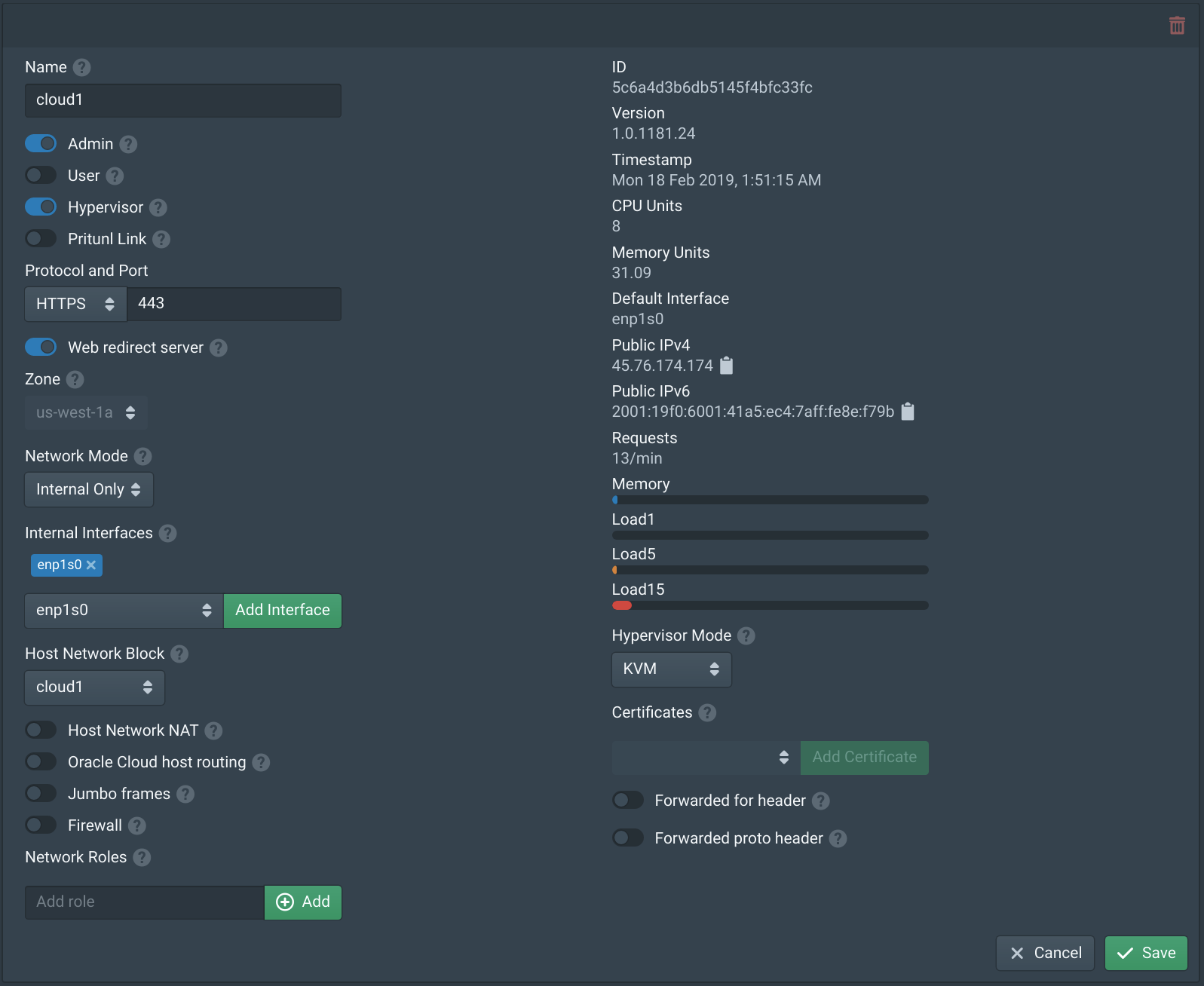
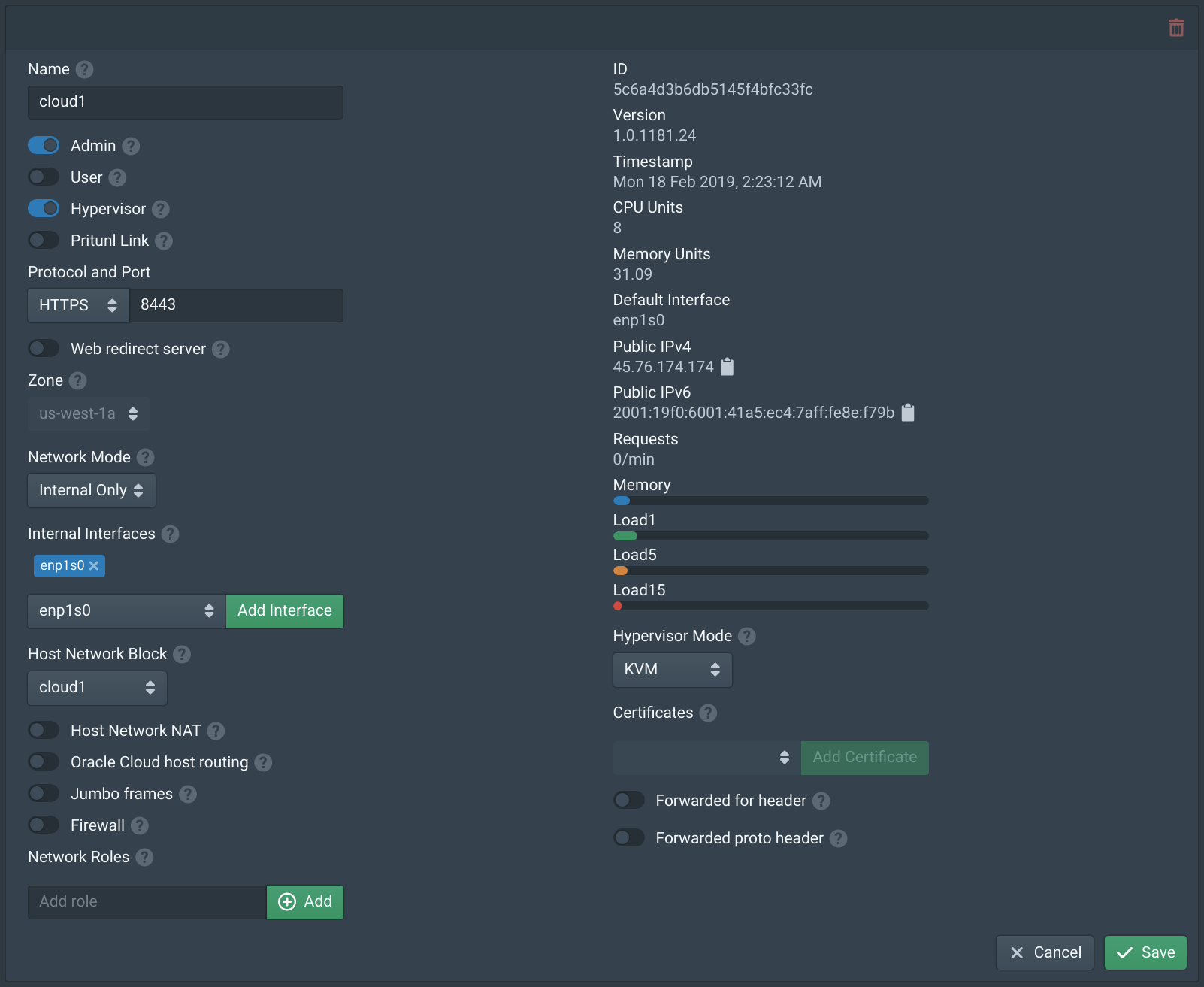
In the Nodes tab configure each node using the parameters below. Each node needs a unique host network block. Although a host network NAT will be used it will be managed by FirewallD and should remain disabled in Pritunl Cloud.
-
Node 1
-
Name:
cloud1 -
Zone:
us-west-1a -
Network Mode:
Internal Only -
Internal Interfaces:
enp1s0 -
Host Network Block:
cloud1 -
Node 2
-
Name:
cloud2 -
Zone:
us-west-1a -
Network Mode:
Internal Only -
Internal Interfaces:
enp1s0 -
Host Network Block:
cloud2
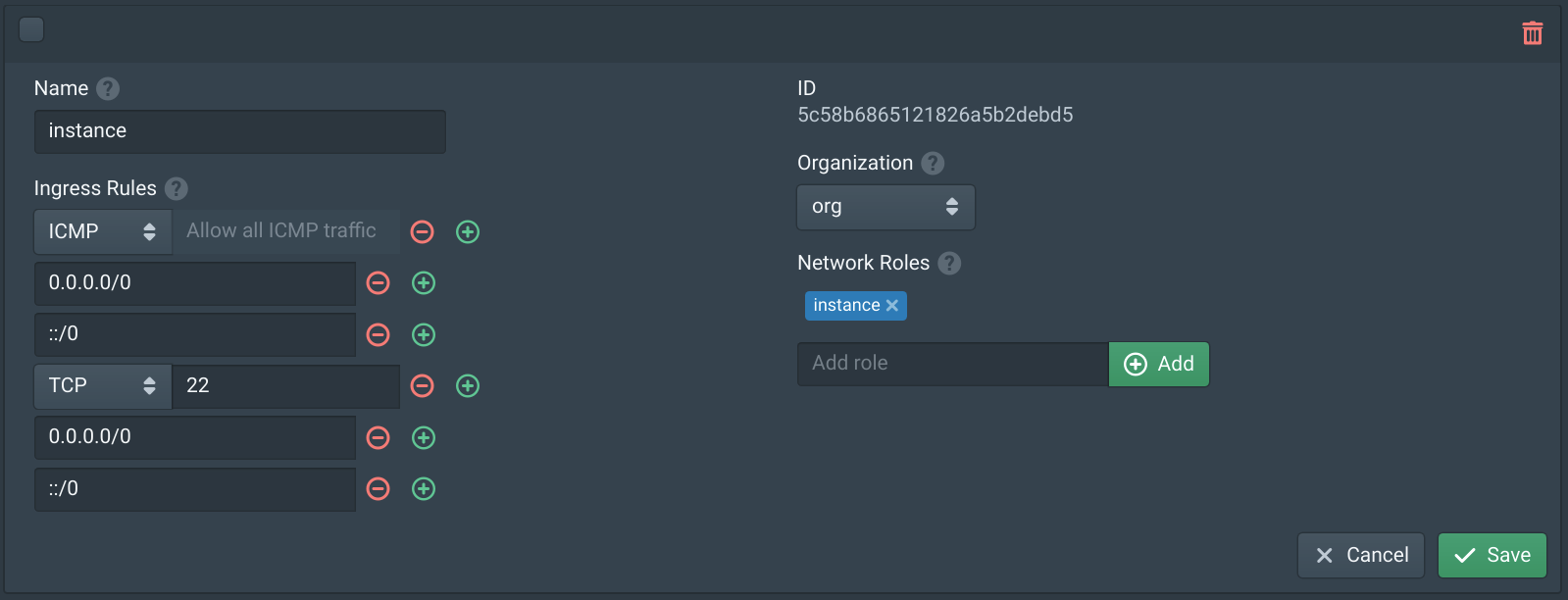
In the Firewalls tab click New. Set the Name to instance, set the Organization to org and add instance to the Network Roles.
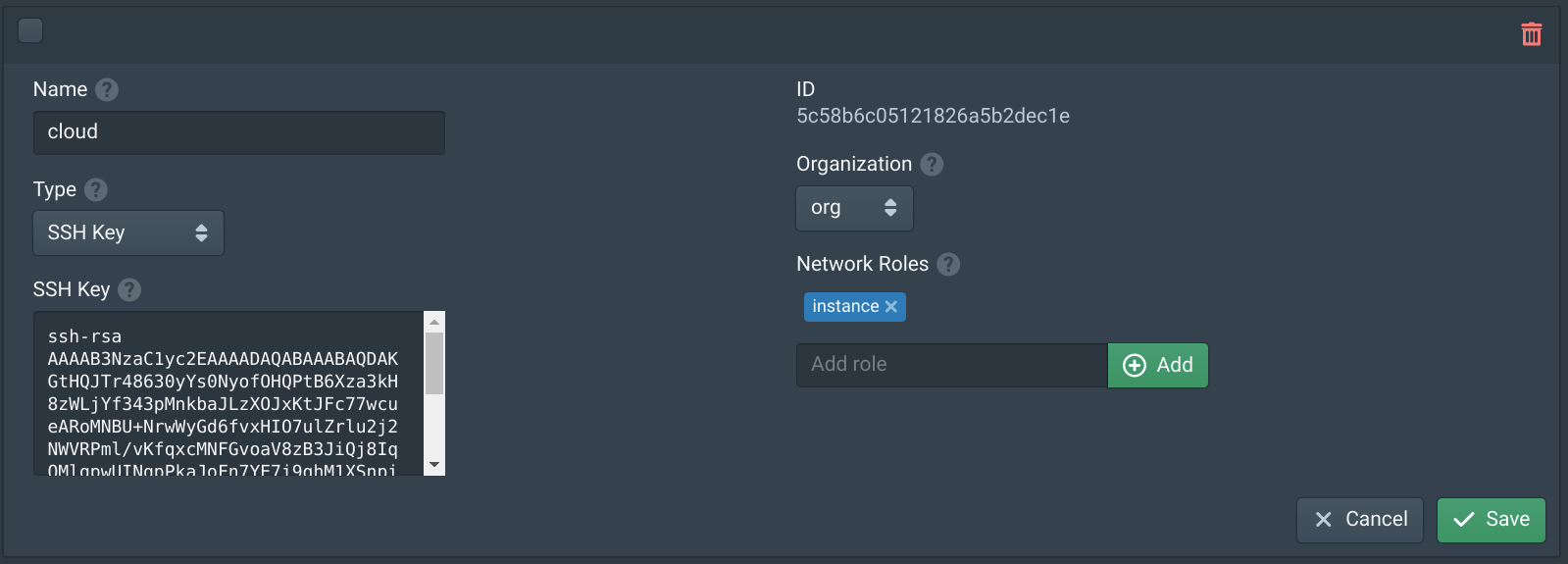
In the Authorities tab click New. Set the Name to cloud, set the Organization to org and add instance to the Network Roles. Then copy your public SSH key to the SSH Key field.
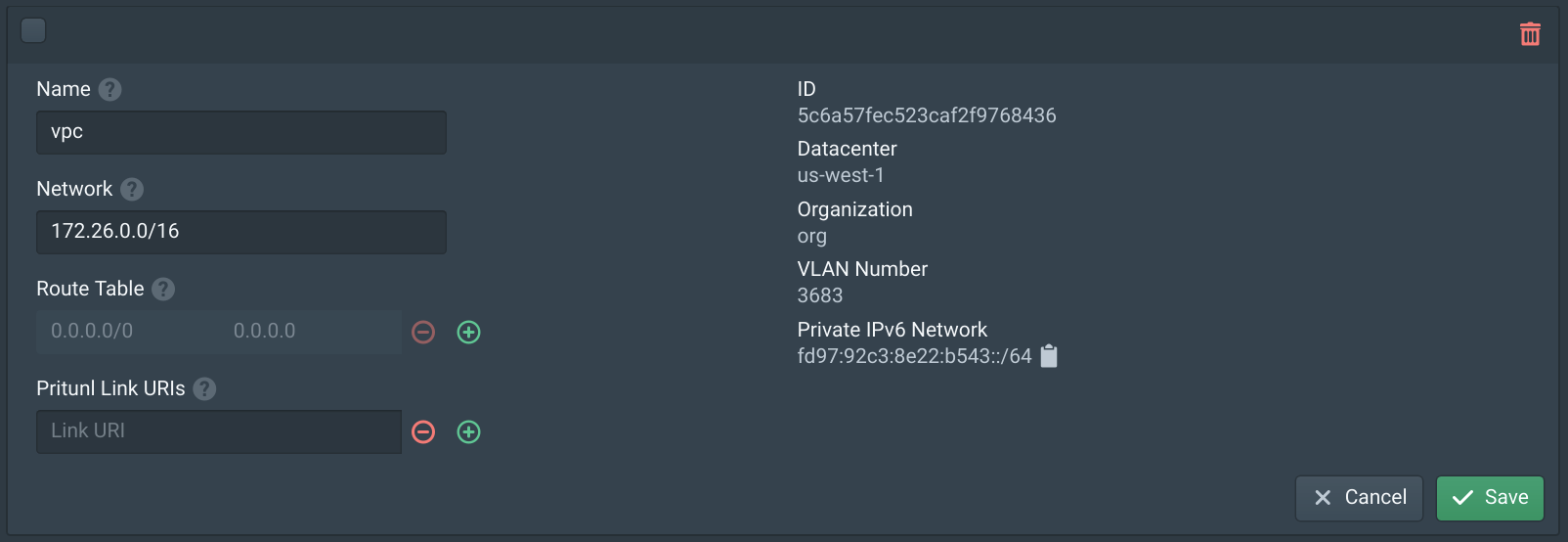
In the VPCs tab enter 172.26.0.0/16 in the network field and click New. Then set the Name to vpc and click Save.
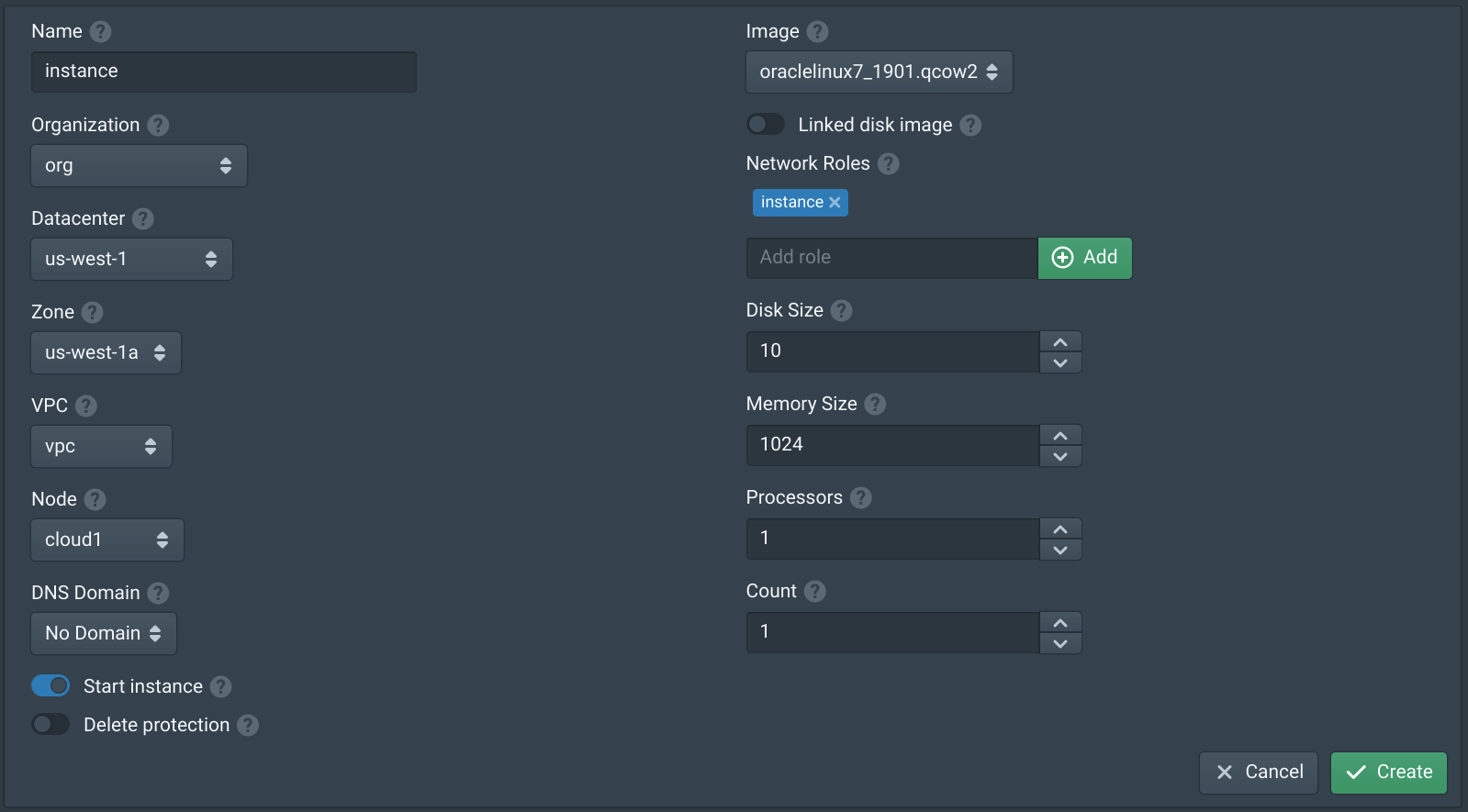
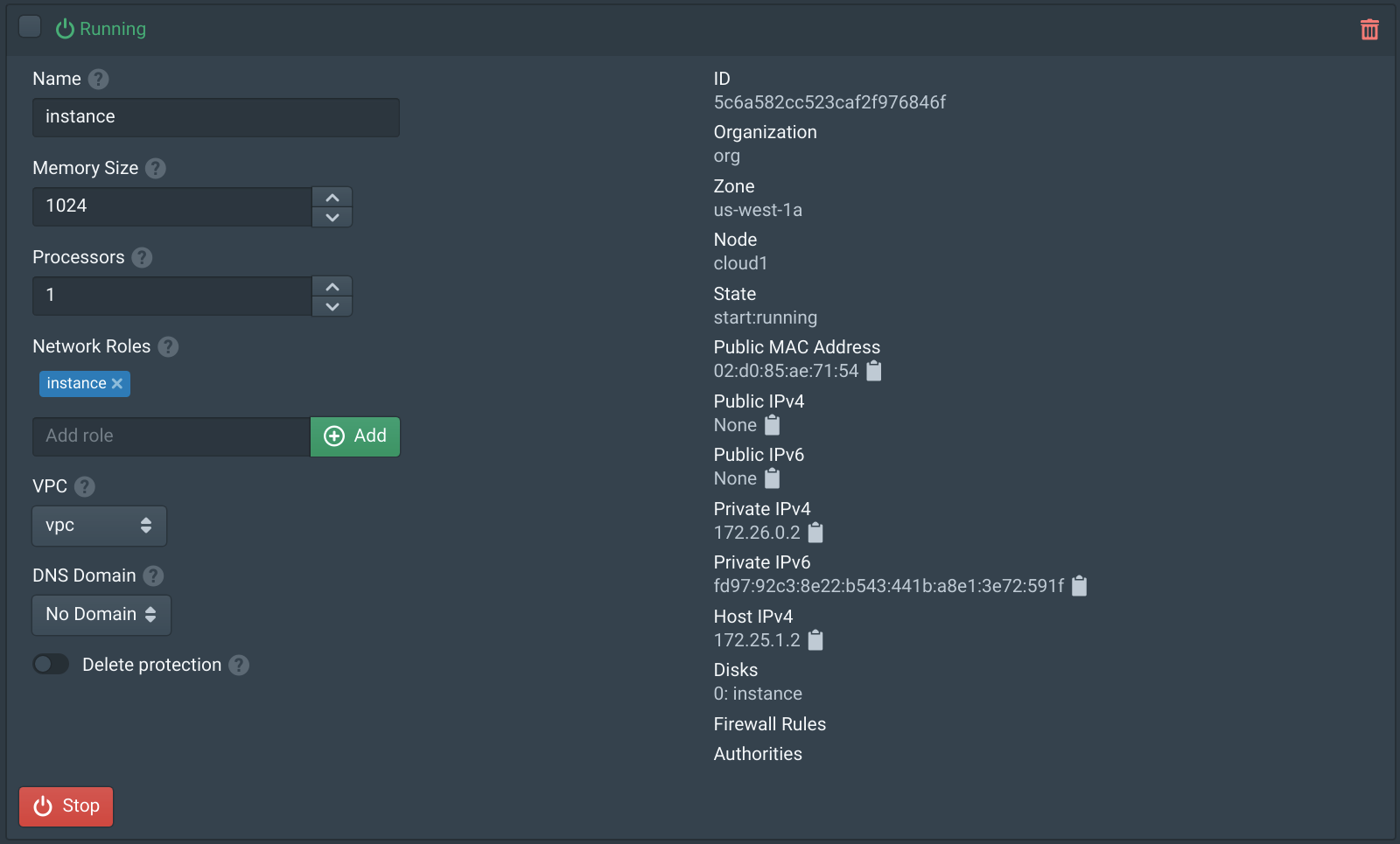
In the Instances tab click New. Set the Name to test, set the Datacenter to us-west-1, set the Zone to us-west-1a and set the Node. Set VPC to vpc. Add instance to the Network Roles and set the Image to oraclelinux7_1901.qcow2. If no images are shown click the Sync button on the Storages tab. Repeat this and create a second instance on a different node to test VPC networking.
Run the command ssh -J cloud@<vultr_server_public_ip> cloud@<pritunl_instance_host_ip> to access the Pritunl Cloud instance through the Pritunl Cloud host.
Port Forwarding
The command below will forward TCP port 8000 to the instance host address 172.25.1.2.
sudo firewall-cmd --permanent --zone=public --add-forward-port=port=8000:proto=tcp:toport=8000:toaddr=172.25.1.2
sudo firewall-cmd --reload
Nginx Load Balancer
To run Nginx on the Pritunl Cloud hosts first set the Protocol and Port to 8443 in the Nodes tab. Then disable Web redirect server and click Save. This will prevent using Lets Encrypt certificates and the Pritunl Cloud web console will only be available on HTTPS port 8443.
Run the commands below to create a base Nginx configuration.
sudo yum -y install nginx

sudo cp /etc/nginx/nginx.conf /etc/nginx/nginx.conf.orig

sudo tee /etc/nginx/nginx.conf << EOF
user nginx;
worker_processes 2;
worker_cpu_affinity auto;
pcre_jit on;

events {
    worker_connections 1024;
    multi_accept on;
    use epoll;
}

http {
    server_tokens off;
    charset utf-8;
    sendfile on;
    tcp_nopush on;
    tcp_nodelay on;
    access_log off;
    keepalive_timeout 65;

    server {
        listen 80;
        server_name _;
        return 404;
    }

    include /etc/nginx/conf.d/*.conf;
}
EOF

sudo systemctl restart nginx
sudo systemctl enable nginx
Use the command below to add a new virtual host for the domain test.pritunl.com. This DNS name must be registered to the Pritunl Cloud server IP address. Replace 172.24.1.2:8000 with the Pritunl Cloud instance host address and port. The Pritunl Cloud instance firewall must be configured to allow traffic on the web server port.
sudo tee /etc/nginx/conf.d/test.conf << EOF
upstream test {
    server 172.24.1.2:8000;
}

server {
    listen 80;
    server_name test.pritunl.com;
    location / {
        proxy_pass http://test;
    }
}
EOF

sudo systemctl restart nginx
Updated 7 months ago