> For the complete documentation index, see [llms.txt](https://docs.pritunl.com/kb/llms.txt). Markdown versions of documentation pages are available by appending `.md` to page URLs; this page is available as [Markdown](https://docs.pritunl.com/kb/cloud/getting-started/installation.md).
# Installation
Installing Pritunl Cloud
It is recommended to run Pritunl Cloud on [**AlmaLinux 10**](https://almalinux.org/), this is the only distribution Pritunl Cloud is tested on.
### Platform Specific Installation Documentation
**These installation instructions are for an Azure virtual machine use the links below for platform specific installation instructions.**
### Create Azure Virtual Machine
This example will use a D-Series virtual virtual machine on Azure. These virtual machines support nested KVM virtualization and will allow Pritunl Cloud to run. AWS instances do not support nested KVM virtualization. Refer to the [**Platforms**](/kb/cloud/getting-started/platforms.md) section for information on installing Pritunl Cloud on bare metal providers.
When creating the virtual machine select the latest AlmaLinux 10 image and a D-Series size.
The disk size should be at least 60gb to allow space for the Pritunl Cloud instances. Below are the firewall rules that will be used for this example. This will allow SSH, HTTP and HTTPs traffic to access the Pritunl Cloud host and web console. The node port range will also be open, this allows Pritunl Cloud node ports to be created for accessing instances.
### Install MongoDB
This configuration will run MongoDB inside a Podman Quadlet container using [**pritunl/toolbox/mongodb-container**](https://github.com/pritunl/toolbox/tree/master/mongodb-container). This is helpful for isolating the database and controlling resource consumption. Multi host production systems should consider using a replica set. Although the software is designed to keep all virtual machines functioning even if the primary `pritunl-cloud` process is stopped or connection to the database is lost. Any changes made to the system state will be applied when connectivity is restored.
```sh
sudo dnf -y install git-core podman
git clone https://github.com/pritunl/toolbox.git
cd toolbox/mongodb-container
sudo podman build --rm -t mongo .
cd
sudo mkdir /var/lib/mongo
sudo chown 277:277 /var/lib/mongo
sudo tee /etc/containers/systemd/mongodb-podman.container << EOF
[Unit]
Description=MongoDB Podman Service
[Container]
Image=localhost/mongo
ContainerName=mongodb
Environment=DB_NAME=pritunl-cloud
Environment=CACHE_SIZE=1
User=mongodb
Volume=/var/lib/mongo:/data/db:Z
PublishPort=127.0.0.1:27017:27017
PodmanArgs=--cpus=1 --memory=2g
[Service]
Restart=always
[Install]
WantedBy=multi-user.target
EOF
sudo systemctl daemon-reload
sudo systemctl start mongodb-podman.service
sleep 3
sudo cat /var/lib/mongo/credentials.txt
```
Wait for the database to start and for the credentials to be shown in the `/var/lib/mongo/credentials.txt` file. Then use the commands below to install Pritunl Cloud. On the first run Pritunl Cloud will read from the credentials file if it exists otherwise the database can be configured in `/etc/pritunl-cloud.json`.
### Install Pritunl Cloud
```shell
sudo tee /etc/yum.repos.d/pritunl.repo << EOF
[pritunl]
name=Pritunl Repository
baseurl=https://repo.pritunl.com/stable/yum/oraclelinux/10/
gpgcheck=1
enabled=1
gpgkey=https://raw.githubusercontent.com/pritunl/pgp/master/pritunl_repo_pub.asc
EOF
sudo dnf -y update
sudo dnf -y remove iptables-services
sudo systemctl stop firewalld.service || true
sudo systemctl disable firewalld.service || true
sudo sed -i 's/^SELINUX=.*/SELINUX=permissive/g' /etc/selinux/config
sudo setenforce 0
sudo dnf -y install iptables net-tools ipset ipvsadm xorriso qemu-kvm qemu-img swtpm swtpm-tools
sudo dnf -y install pritunl-cloud
sudo systemctl enable --now pritunl-cloud
```
### Access Web Console
After the installation is complete run the command below to get the default password and use this to login to the web console on the HTTPS port of the server.
```sh
sudo pritunl-cloud default-password
```
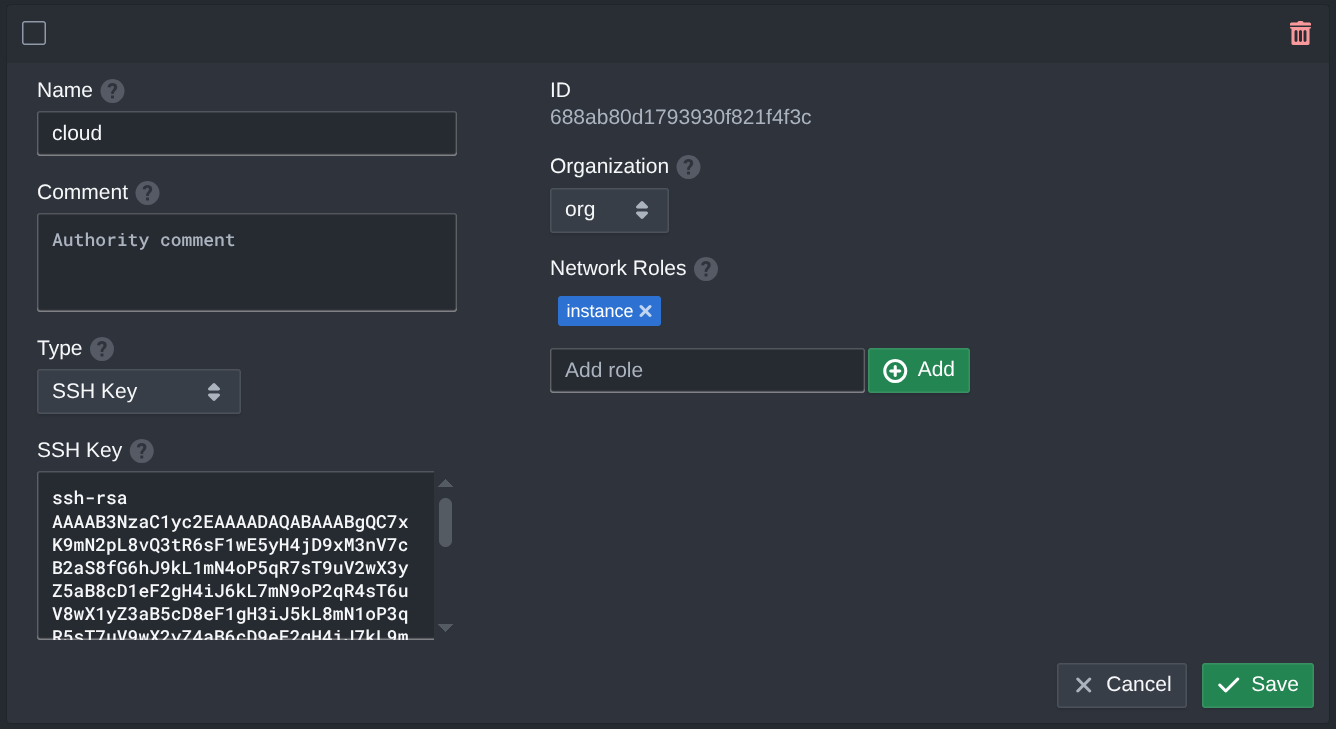
Use the provided password to login to the web console at the server public IP. Then open the *Authorities* tab. These store SSH credentials that will be applied to instances based on matched roles. If an instance has a role that matches the authority role that SSH key will be added to the instance under the `cloud` username. The name of the authority does not change the username it will always be the `cloud` user. Select the pre-created authority and paste your public SSH key in the *SSH Key* field and click *Save*. When creating an instance or pod add the `instance` role to include this SSH key to allow for SSH access.
### Server Maintenance
The container will automatically configure the database with authentication and store the data in `/var/lib/mongo` The MongoDB shell can be accessed using the command below with the admin password stored in the credentials file. The container also includes an upgrade script that can update the packages in place using the command below.
```sh
# MongoDB Shell
sudo cat /var/lib/mongo/credentials.txt
sudo podman exec -it mongodb bash
mongosh -u admin --authenticationDatabase admin
# MongoDB Upgrade
sudo podman exec -u root mongodb update
sudo podman restart mongodb
```
The next section will explain creating the first pod.
---
# Agent Instructions
This documentation is published with GitBook. GitBook is the documentation platform designed so that both humans and AI agents can read, navigate, and reason over technical content effectively. Learn more at gitbook.com.
## Querying This Documentation
If you need additional information that is not directly available in this page, you can query the documentation by asking a question.
Perform an HTTP GET request on the following URL with the `ask` and `goal` query parameters:
```
GET https://docs.pritunl.com/kb/cloud/getting-started/installation.md?ask=&goal=
```
`ask` is the immediate question: it should be specific, self-contained, and written in natural language.
`goal` is what the user is ultimately trying to achieve, the reason they need the answer. Sharing it helps GitBook give you a better, more relevant answer. A goal is most helpful when it describes the outcome the user wants rather than restating the question. For example, with `ask=how do I create an API token`, a goal like `automate deployments from our CI pipeline` lets GitBook tailor the answer to that use case.
The response will contain a direct answer to the question and relevant excerpts and sources from the documentation.
Use this mechanism when the answer is not explicitly present in the current page, you need clarification or additional context, or you want to retrieve related documentation sections.