> For the complete documentation index, see [llms.txt](https://docs.pritunl.com/kb/llms.txt). Markdown versions of documentation pages are available by appending `.md` to page URLs; this page is available as [Markdown](https://docs.pritunl.com/kb/cloud/platforms/latitude.md).
# Latitude.sh
Configure Pritunl Cloud on Latitude.sh Bare Metal
**This section is for installing Pritunl Cloud on Latitude.sh Bare Metal if you are using Azure or another provider skip to the next section.**
### **Create VLAN Network**
First open the *Network* section of the Latitude.sh web console and go to the *Pritunl Networks* section under *Network*. Click *Create VLAN* and select a *Location*. Then click *Create*.
### Create Bare Metal Server
[**Pritunl Boot**](https://boot.pritunl.com/) will be used to install the operating system on the Latitude.sh Bare Metal server using iPXE. When installing the distribution either leave the *Root Filesystem Size* blank to use the full disk or use a 50GB root filesystem and create an encrypted XFS mount at `/var/lib/pritunl-cloud` with the remaining space. Follow the [**Pritunl Boot Latitude.sh documentation**](https://docs.pritunl.com/kb/boot/platforms/latitude) to install AlmaLinux 10 as the host operating system.
### Assign Private Network
Once the Linux distribution has been installed on the server open the Latitude.sh server settings. Then under *Private network assignments* click *Assign* then select the VLAN that was created earlier.
Update the script below with the second network interface shown in the output of `ip addr` and copy the VLAN ID from the *VID* field in the Latitude.sh server settings. Any IP address and subnet can be chosen. All other servers must have a unqiue IP on this network. Latitude.sh provides 1564 MTU private networking. This allows the Pritunl Cloud VXLAN VPC networking to work without dropping below the 1500 standard MTU for external traffic.
```sh
IFACE_NAME="eno2np1"
VLAN_IP="10.218.0.10/16"
VLAN_ID="2045"
sudo nmcli connection add type ethernet con-name "$IFACE_NAME" ifname "$IFACE_NAME" connection.autoconnect yes
sudo nmcli connection modify "$IFACE_NAME" 802-3-ethernet.mtu 1564 ipv4.method disabled ipv6.method ignore
sudo nmcli connection up "$IFACE_NAME"
sudo nmcli connection add type vlan con-name "${IFACE_NAME}vx" ifname "${IFACE_NAME}vx" dev "$IFACE_NAME" id "$VLAN_ID" connection.autoconnect yes
sudo nmcli connection modify "${IFACE_NAME}vx" ipv4.method manual ipv4.addresses "$VLAN_IP"
sudo nmcli connection modify "${IFACE_NAME}vx" mtu 1564
sudo nmcli connection up "${IFACE_NAME}vx"
```
### Install Pritunl Cloud
The [**Installation documentation**](/kb/cloud/getting-started/installation.md) **has more information on the commands that will be run below. Refrence this for more information. This section also explains how to upgrade the MongoDB server. First install MongoDB inside Podman using the commands below.**
```sh
sudo dnf -y install git-core podman
git clone https://github.com/pritunl/toolbox.git
cd toolbox/mongodb-container
sudo podman build --rm --no-cache --pull -t mongo .
cd
sudo mkdir /var/lib/mongo
sudo chown 277:277 /var/lib/mongo
sudo tee /etc/containers/systemd/mongodb-podman.container << EOF
[Unit]
Description=MongoDB Podman Service
[Container]
Image=localhost/mongo
ContainerName=mongodb
Environment=DB_NAME=pritunl-cloud
Environment=CACHE_SIZE=1
User=mongodb
Volume=/var/lib/mongo:/data/db:Z
PublishPort=127.0.0.1:27017:27017
PodmanArgs=--cpus=1 --memory=2g
[Service]
Restart=always
[Install]
WantedBy=multi-user.target
EOF
sudo systemctl daemon-reload
sudo systemctl start mongodb-podman.service
sleep 3
sudo cat /var/lib/mongo/credentials.txt
```
Then install and start Pritunl Cloud with the commands below. Pritunl Cloud will automatically read the credentials from the path above if it exists. If the MongoDB database is hosted in another way add the MongoDB URI to `/etc/pritunl-cloud.json` .
```sh
sudo tee /etc/yum.repos.d/pritunl.repo << EOF
[pritunl]
name=Pritunl Repository
baseurl=https://repo.pritunl.com/stable/yum/almalinux/10/
gpgcheck=1
enabled=1
gpgkey=https://raw.githubusercontent.com/pritunl/pgp/master/pritunl_repo_pub.asc
EOF
sudo dnf -y update
sudo dnf -y remove iptables-services
sudo systemctl stop firewalld.service
sudo systemctl disable firewalld.service
sudo sed -i 's/^SELINUX=.*/SELINUX=permissive/g' /etc/selinux/config
sudo setenforce 0
sudo dnf -y install iptables net-tools ipset ipvsadm xorriso qemu-kvm qemu-img swtpm swtpm-tools
sudo dnf -y install pritunl-cloud
sudo systemctl enable --now pritunl-cloud
```
### Configure Pritunl Cloud
First get the default password by running the command below. Then use this to login to the web console running on HTTPS port 443.
sudo pritunl-cloud default-password
In the Latitude.sh bare metal server settings click on the IPv6 address in the *IP assignments* section. Avoid clicking the left side which will copy the address instead of opening the details. From the *IP address details* copy the *Gateway* for the next step.
Then open the *IP Blocks* tab in the Pritunl Cloud web console. Create a block for the public IPv6 addresses. Set the *Network Mode* to *IPv6* and name the block. Paste the IPv6 gateway address from the previous step into *IPv6 Gateway* and remove the `/64` from the end of the address. Then paste the address into the *IPv6 Addresses* and remove the host `1` from the address leaving only the network and CIDR portition of the address. For this the gateway is `2605:6440:d000:29::1` and the IPv6 network address is `2605:6440:d000:29::/64`.
Although the private network on the Latitude.sh server uses a VLAN because the Pritunl Cloud server will be attaching interfaces directly to the VLAN interface created earlier the VLAN is handled externally and should not be set in the Pritunl Cloud settings. Once done click *Create*.
Once the blocks have been configured open the node settings in the *Nodes* tab. Set the *Network IPv6 Mode* to *Static*. Remove the default `pritunlhost0` internal interface then set *Internal Interfaces* to the internal VLAN interface ending in `vx` that was created earlier and click *Add Interface*. This should display the private IPv4 address on the dropdown selection.
For the *External IPv6 Block Attachments* select the external interface. This interface should display the public IPv4 address on the dropdown selection. Then select the IP block that was created in the previous step.
Disable *Default instance public IPv4 address* and enable *Default instance public IPv6 address*. Then enable *Jumbo frames internal* option and disable *Jumbo frames external*.
Open the *Datacenters* tab and verify the *Network Mode* is set to *VXLAN*. Then set *Jumbo Frames MTU* to `1554`. The 1554 MTU is slightly smaller then the 1564 available but reducing it to 1554 will account exactly for the 54 overhead of the VXLAN+VLAN networking used by Pritunl Cloud.
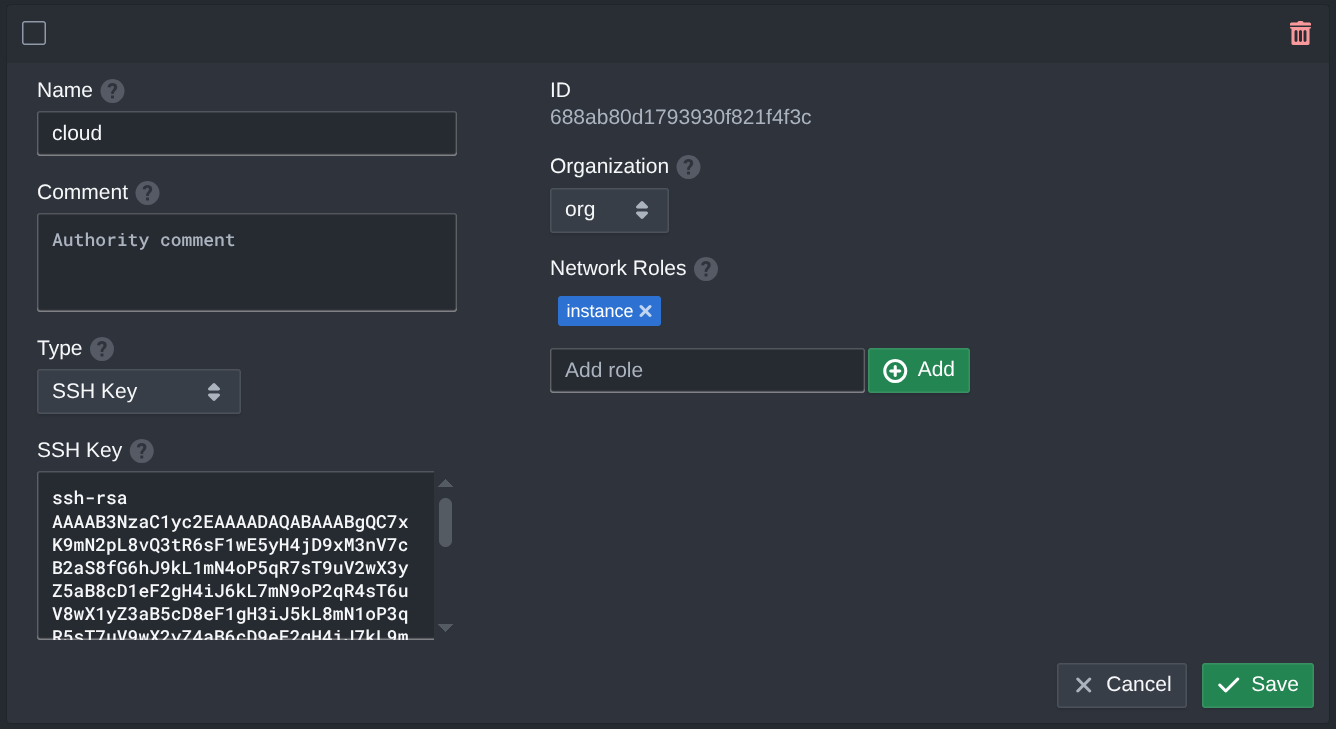
Open the *Authorities* tab. These store SSH credentials that will be applied to instances based on matched roles. If an instance has a role that matches the authority role that SSH key will be added to the instance under the `cloud` username. The name of the authority does not change the username it will always be the `cloud` user. Select the pre-created authority and paste your public SSH key in the *SSH Key* field and click *Save*. When creating an instance or pod add the `instance` role to include this SSH key to allow for SSH access.
This completes the configuration for a Pritunl Cloud server on Latitude.sh Bare Metal. The section linked below will explain creating a pod. These sections assumes instance public IPv6 addresses are not available although with this configuration each instance will receive a public IPv6 address.
To provide public IPv4 addresses for instances repeat the previous steps adding a block for each reserved IP attached to the host. Set the *Network IPv4 Mode* to static and create a block attachment for each reserved IP block. All the bloock attachments should use the public interface.
---
# Agent Instructions
This documentation is published with GitBook. GitBook is the documentation platform designed so that both humans and AI agents can read, navigate, and reason over technical content effectively. Learn more at gitbook.com.
## Querying This Documentation
If you need additional information that is not directly available in this page, you can query the documentation by asking a question.
Perform an HTTP GET request on the following URL with the `ask` and `goal` query parameters:
```
GET https://docs.pritunl.com/kb/cloud/platforms/latitude.md?ask=&goal=
```
`ask` is the immediate question: it should be specific, self-contained, and written in natural language.
`goal` is what the user is ultimately trying to achieve, the reason they need the answer. Sharing it helps GitBook give you a better, more relevant answer. A goal is most helpful when it describes the outcome the user wants rather than restating the question. For example, with `ask=how do I create an API token`, a goal like `automate deployments from our CI pipeline` lets GitBook tailor the answer to that use case.
The response will contain a direct answer to the question and relevant excerpts and sources from the documentation.
Use this mechanism when the answer is not explicitly present in the current page, you need clarification or additional context, or you want to retrieve related documentation sections.